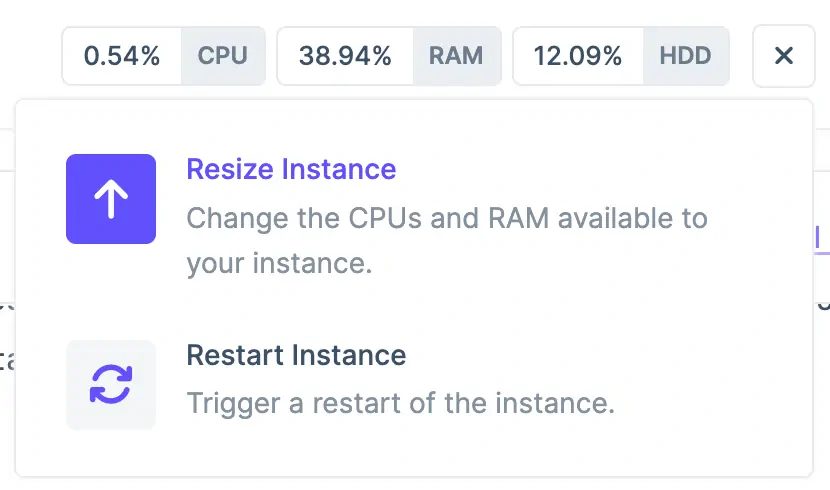
To scale your app vertically (adding more compute power to an existing instance), navigate to the deployment with the instance(s) you’d like to scale and locate it in the “App Instances” list. Locate the gear icon on the right-hand side of the instance to reveal its menu, and then, click the “Resize Instance” option.
Locating the Resize Instance Menu Option
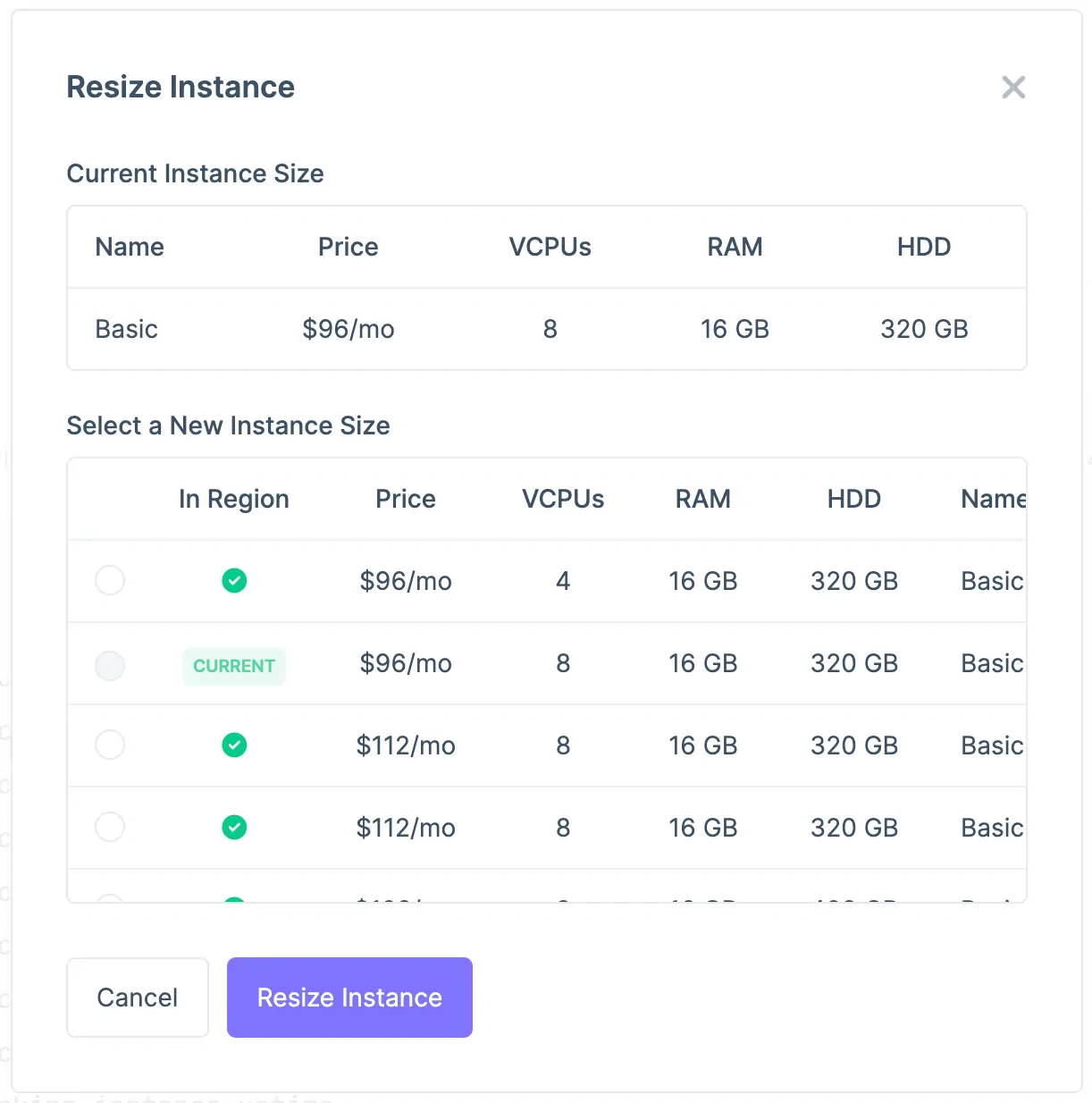
- The current size of your instance.
- A list of alternative instance sizes to choose for your instance.
Your instance size can be increased or decreased, however, your deployment’s provider may have limits on which instance sizes you have access to (e.g., DigitalOcean only allows an instance to be resized to a droplet size with the same HDD space).
The Resize Instance Modal
current. Once you’ve selected your new size, click “Resize Instance.” Push will begin the resize process, adjusting your instance’s CPU and RAM and then restarting your server.
Resize events take 30-60 seconds on average. If your deployment type is standalone, or, you’re resizing your load balancer, your app will be temporarily unavailable during this process.