In some extreme cases, you may want or need to debug your instance(s) via SSH (e.g., to manually check syslogs, restart your app process, or install dependencies). If you need to access your app via SSH, you have two options:
- Use an existing SSH key that you’ve uploaded to your host.
- Use Push’s SSH key for your deployment.
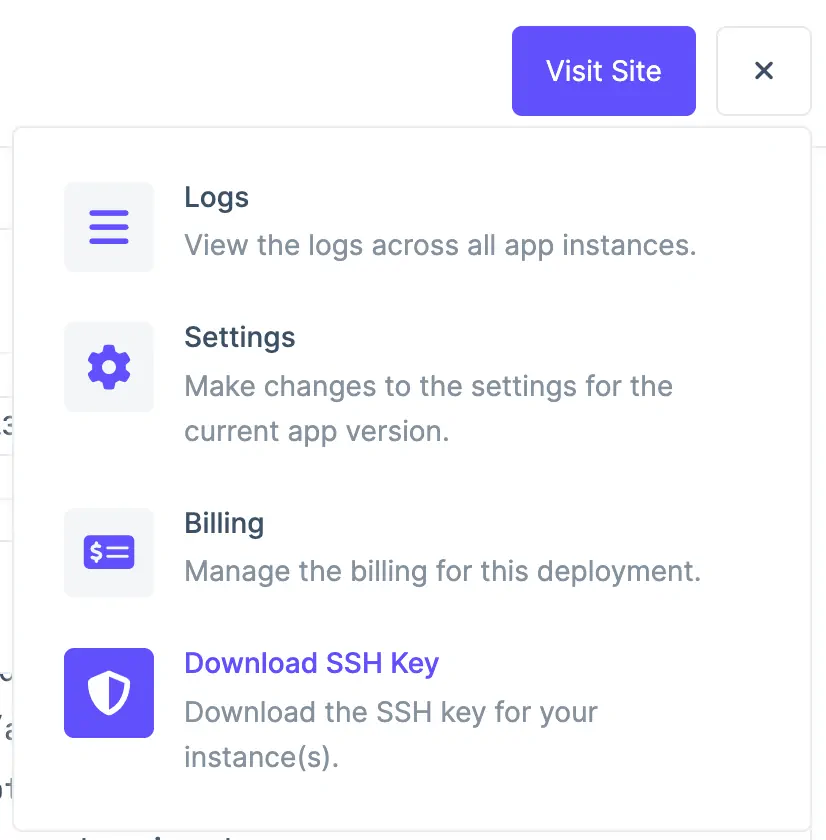
If you do not have an existing SSH key that you’d like to use, you can download the SSH key Push has generated for your deployment from your deployment’s dashboard. To download it, navigate to the deployment you’d like to access via SSH and locate the deployment menu, denoted by the three bars on the top-right of the screen (to the right of the “Visit Site” button). From the menu, click “Download SSH Key” to download a copy of your SSH key to your computer.
KEEP THIS KEY IN A SECURE LOCATION. It permits direct root access to your instances via SSH. It’s recommended that you delete it from your computer after you’ve completed debugging.
Locating the Download SSH Key Menu Option
ssh command line tool:
ssh -i /path/to/downloaded/key root@<instance_ip_address>
codewithparrot.com to your ~/Downloads directory and your instance IP address was 555.555.555.555, you’d write:
Above, you’d replace codewithparrot.com.key with the name of the downloaded key file’s name for your deployment’s domain.
By default, Push disables password-based login via root to your server (no root password is generated). An SSH key is required to access your instance.
Common SSH Debugging Techniques
Once you’ve SSH’d into your server, the following debugging techniques can be used to assess issues.
Checking logs
To check the raw logs for your server, run:
This will print out the raw systemlog that includes the logs for your entire instance (including your Joystick app’s logging). It’s best to inspect these logs for any obvious issues or startup errors with your app to identify a fix.
Checking the app process
Under the hood, Push uses systemd to manage your app’s lifecycle. To check the status of your app process, run:
This will print the current systemd status for your app along with the most recent 5-10 lines of system logs for your app. If the status for the service does not appear to be active, you can restart the process with the following command:
This will restart the systemd service that controls your Joystick app process on the instance.